SDK Widget
The Search SDK is a configurable widget that enables travel search integration into any website. It supports station, city, and area searches with autocomplete functionality.
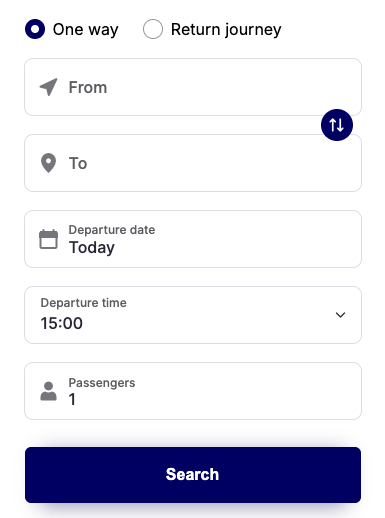
The widget provides:
- Location Search — dynamically returns matching stations, destinations, and origins based on account configuration
- Autocomplete — suggests stations for origin and destination fields
- Date Selection — trip date picker interface
- Journey Type — one-way, return, weekly, or open return ticket options
- Passenger Count — configurable number of travelers
- Time Selection — departure and arrival time options for high-frequency routes
- Predefined Options — present users with curated lists of departure/arrival locations and dates as dropdown selectors
- RTL Support — right-to-left text direction across the search bar UI
Implementation
Basic HTML Setup
<!DOCTYPE html>
<html lang="en">
<head>
<meta charset="UTF-8" />
<meta name="viewport" content="width=device-width, initial-scale=1.0" />
<link rel="preconnect" href="https://book.distribusion.com">
<link rel="stylesheet" href="https://book.distribusion.com/sdk-fonts.1.0.0.css">
<script defer src="https://book.distribusion.com/sdk.1.0.0.js"></script>
</head>
<body>
<div id="search-box" style="min-height: 280px;"></div>
<script>
document.addEventListener('DOMContentLoaded', function () {
Distribusion.Search.mount({
root: document.getElementById('search-box'),
partnerNumber: 123456,
locale: 'en',
});
});
</script>
</body>
</html>Configuration Parameters
The Distribusion.Search.mount() method accepts a configuration object and returns an object with an unmount() method.
Required
Parameter | Type | Description |
|
| Target DOM element where the widget will render. |
|
| Six-digit account identifier. |
|
| Language code in two or four-letter format (e.g., |
Optional
Parameter | Type | Default | Description |
|
| — | Three-letter currency code (e.g., |
|
|
| Display orientation: |
|
|
| Where to open the booking page: |
|
| — | Filter autocomplete suggestions to specific carrier codes. |
|
| — | Preset values for form fields. See Default Values. |
|
| — | UTM tracking parameters. See UTM Parameters. |
|
| — | Additional DOM elements to render alongside the widget. |
Default Values
The defaults object allows you to preset form field values, control field visibility, and define predefined options for users.
Locations
Use the departure and arrival arrays to set location defaults or provide predefined dropdown options.
Parameter | Type | Description |
|
| List of departure location options. A single entry sets the default. Multiple entries render as a dropdown selector, and location autocomplete is automatically disabled. |
|
| List of arrival location options. A single entry sets the default. Multiple entries render as a dropdown selector, and location autocomplete is automatically disabled. |
Each entry in the array must contain exactly one of the three location properties (Station, Area, or City), identified by its code.
Single default location:
 defaults: {
  departure: [{ departureStation: 'DEMUCS3ZOB' }],
  arrival: [{ arrivalCity: 'FRPAR' }],
}
Multiple predefined options (rendered as dropdowns):
 defaults: {
  departure: [
    { departureStation: 'DEMUCS3ZOB' },
    { departureStation: 'DEBERZOB' },
    { departureCity: 'DEHAM' },
  ],
  arrival: [
    { arrivalCity: 'FRPAR' },
    { arrivalCity: 'FRLYN' },
  ],
}
Location Types
Filter which types of locations appear in autocomplete suggestions.
Parameter | Type | Description |
|
| Overrides the location types returned by the locations API. When set, only the specified types are requested. By default, all types configured for the account are shown. |
 // Only show city-level and station-level results in autocomplete
defaults: {
  locationTypes: ['city', 'station'],
}
Dates
Use departureDates and returnDates arrays to set date defaults or provide predefined date options.
Parameter | Type | Format | Description |
|
|
| List of departure date options. A single entry sets the default date. Multiple entries render as a date dropdown. |
|
|
| List of return date options. A single entry sets the default date. Multiple entries render as a date dropdown. |
Single default date:
 defaults: {
  departureDates: ['2026-05-01'],
}
Multiple predefined date options:
 defaults: {
  departureDates: ['2026-05-01', '2026-05-08', '2026-05-15'],
  returnDates: ['2026-05-05', '2026-05-12', '2026-05-19'],
}
Return Date Logic
Automatically set the return date relative to the selected departure date, without requiring an explicit return date.
Parameter | Type | Description |
|
| Auto-sets the return date when the user picks a departure date. |
 // Return ticket defaults to the day after departure
defaults: {
  returnDateLogic: 'next-day',
}

// Same-day return (e.g., day trips)
defaults: {
  returnDateLogic: 'same-day',
  tripType: ['inbound'],
  tripTypeSelected: 'inbound',
}
Times
Parameter | Type | Format | Description |
|
|
| Default departure time. |
|
|
| Default return window start time. |
|
|
| Default return window end time. |
Trip Type
Parameter | Type | Description |
|
| Define the available trip type options presented to the user. |
|
| Set the initially selected trip type. |
 defaults: {
  tripType: ['outbound', 'inbound'],
  tripTypeSelected: 'outbound',
}
Display Controls
Toggle the visibility of specific form fields. All default to true (visible).
Parameter | Type | Description |
|
| Show or hide the arrival location field. |
|
| Show or hide the departure date picker. |
|
| Show or hide the return date picker. |
|
| Show or hide the trip type selector. |
 // Hide return date and trip type for a one-way-only widget
defaults: {
  returnDatesDisplay: false,
  tripTypeDisplay: false,
}
Read-Only Controls
Make specific fields read-only, preventing user modification while still displaying the preset value.
Parameter | Type | Description |
|
| Make the arrival field read-only. |
|
| Make the departure date picker read-only. |
|
| Make the return date picker read-only. |
// Lock the arrival to a specific station
defaults: {
arrival: [{ arrivalStation: 'FRPARPBE' }],
arrivalReadOnly: true,
}Passengers
Parameter | Type | Default | Description |
|
|
| Number of passengers (simple mode). |
|
| — | Detailed passenger configuration. Each entry: |
 defaults: {
  passengers: [
    { type: 'adult', pax: 2 },
    { type: 'child', pax: 1, age: 8 },
  ],
}
Other
Parameter | Type | Description |
|
| Enable accommodation option in the search form. |
|
| Enable weekly ticket mode. |
|
| Array of discount/voucher card objects. |
Deprecated Parameters
The following flat parameters are still supported for backward compatibility, but will be removed in a future version. Use the new array-based format instead.
Deprecated Parameter | Replacement |
|
|
|
|
|
|
|
|
|
|
|
|
|
|
|
|
UTM Parameters
The optional utm object supports standard UTM tracking parameters:
Parameter | Type |
|
|
|
|
|
|
|
|
|
|
|
|
Full Example
<!DOCTYPE html>
<html lang="en">
<head>
<meta charset="UTF-8" />
<meta name="viewport" content="width=device-width, initial-scale=1.0" />
<link rel="preconnect" href="https://book.distribusion.com">
<link rel="stylesheet" href="https://book.distribusion.com/sdk-fonts.1.0.0.css">
<script defer src="https://book.distribusion.com/sdk.1.0.0.js"></script>
</head>
<body>
<div id="search-box" style="min-height: 280px;"></div>
<script>
document.addEventListener('DOMContentLoaded', function () {
var searchWidget = Distribusion.Search.mount({
root: document.getElementById('search-box'),
partnerNumber: 123456,
locale: 'en-US',
currency: 'EUR',
layout: 'row',
target: 'blank',
defaults: {
departure: [
{ departureStation: 'DEMUCS3ZOB' },
{ departureStation: 'DEBERZOB' },
],
arrival: [
{ arrivalCity: 'FRPAR' },
{ arrivalCity: 'FRLYN' },
],
departureDates: ['2026-05-01', '2026-05-08', '2026-05-15'],
returnDateLogic: 'next-day',
locationTypes: ['city', 'station'],
tripType: ['outbound', 'inbound'],
tripTypeSelected: 'outbound',
returnDatesDisplay: false,
pax: 2,
},
utm: {
utm_source: 'website',
utm_medium: 'widget',
utm_campaign: 'summer2026',
},
});
// To remove the widget later:
// searchWidget.unmount();
});
</script>
</body>
</html>Performance Best Practices
- Early Mounting — use
DOMContentLoadedrather thanloadto mount the widget as early as possible. - Non-Blocking Loading — add
deferto the script tag so it downloads in parallel without blocking page rendering. - Layout Stability — assign a
min-height(e.g.,280px) to the container element to reduce cumulative layout shift while the widget loads.


On this page
- SDK Widget